The Upload Data File link is for those individuals using third-party vendor software for managing political activities or for those using the pre-defined Excel spreadsheet available for downloading from the WYCFIS Home Page. This page provides the user with the ability to upload the text file of contributions and expenditures created either by the Excel spreadsheet or by a third-party vendor.
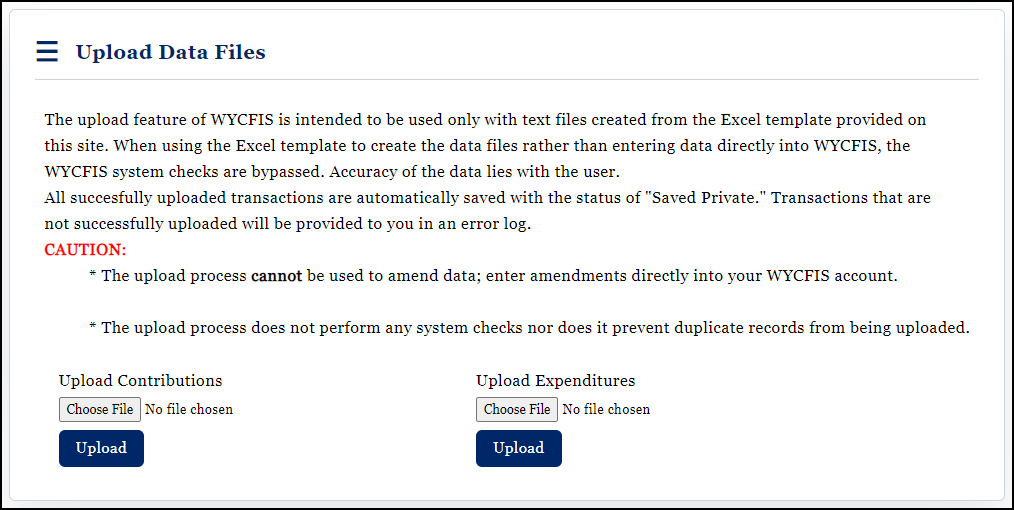
IMPORTANT: When using the Upload Data Files feature of WYCFIS, there are several items which deserve special attention:
1.Do not re-use the same template after an upload. Users should download a new empty template from the WYCFIS website. This will ensure that the most up-to-date template has been downloaded and will likely prevent records from being duplicated.
2.The Excel template is a macro enabled Excel template. Users must allow macros on their computer in order to use this file.
3.There is a button on the Instruction page of the Excel workbook (Prepare Upload Files) which must be used to create the text files for uploading into WYCFIS. The process of preparing the upload files transforms the data into information readable by WYCFIS. Following is a sample:

4.The upload process cannot be used to amend data; amendments must be entered directly into the WYCFIS account.
5.The upload process does not perform any system checks nor does it prevent duplicate records from being uploaded.
6.Accuracy of the uploaded data lies with the user.
Upload Process
After the user has prepared the upload files (either by selecting that option in the WYCFIS Excel template or by exporting the data from a third party vendor's system which has been modified to meet WYCFIS specifications), the files are ready to be uploaded.
To upload a file, the user first needs to click Choose File to browse to the location of the exported/saved files and select them.

Once the files have been browsed for and selected, click Upload to actually upload the data files into WYCFIS. You must Upload each file individually.
Upload Summary
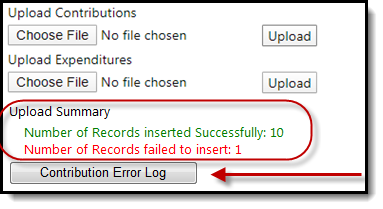
After uploading, the user is presented with the Upload Summary. The Summary informs the user of the number of uploaded records which were successful and/or the number which failed. If any records failed the upload process, the user is provided with a button/link called Contribution Error Log or Expenditure Error Log.
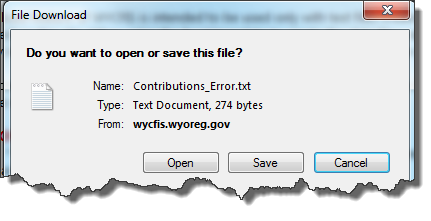
Selecting the Contribution Error Log or Expenditure Error Log provides the user with a pop-up asking if the user wants to Save or Open the file.
Once Saved or Opened, the user can see which records failed the upload process. IMPORTANT: The log does not identify WHY the record(s) failed the upload; it simply identifies which records were not uploaded.

Any records which failed to upload should manually be entered into WYCFIS.